
Manage Supplemental Questions
See the supplemental questions on your surveys and their results.
Activated Insights Support adds, edits, and turns off supplemental questions for you. In Retain, you can view the questions on your surveys and their reporting, and contact support to change one.
Note: Only Activated Insights can edit supplemental questions. Retain Administrators can view them here.
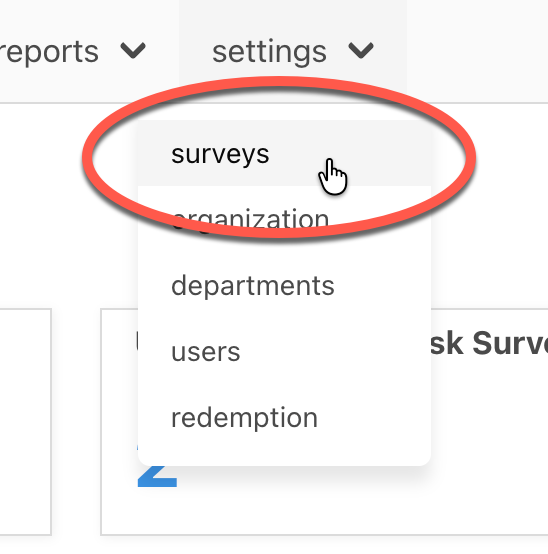
In the top menu, open settings, then surveys.
Open the Supplemental Questions tab.

Questions are grouped by survey — for example, New-Hire Survey: 30 Days — with each question's ID, Text, whether it's Active, and whether it's Required. This is also where you see how people have answered them.
To add a question, see Add a Supplemental Question.

To change a question's wording, turn it off, or turn it back on, contact support with the question's ID.
Keep in mind
- A change applies to the next survey that goes out. Surveys already in progress won't change.
- Turning a question off just stops asking it going forward — it shows No under Active, and any answers already collected stay in your reports.